Here's my final project photo story. Enjoy!
Saturday, May 1, 2010

Thursday, April 8, 2010
Week 11: Portraits!
I actually like shooting portraits. Self portraits are a different matter, though. Boy is it hard to get decent shots with a timer! I took a few today and will be working on a few more this week, hopefully. I created the fake depth of field using a gaussian blur, a layer mask, and the gradient tool. The new hair color is not from Gimp... it's from a bottle. :)


This one is done in a more traditional pose. He was a really good sport about it.

I took these at the playground. I was having fun using the equipment as a way to frame the shots.


This one is done in a more traditional pose. He was a really good sport about it.

I took these at the playground. I was having fun using the equipment as a way to frame the shots.


Monday, April 5, 2010
Week 10: Watermark
Hey guys... this photo uses a combo of anisotropic smoothing, unsharp mask (only on the feet), and dodging and burning to get the effects I wanted. In the future, I'll make the "dodged" background for the text smaller and closer to the actual words. It's a little too obvious for my tastes.


Saturday, April 3, 2010
Week 10: Clone Tool and Heal Tool
Hey guys... I've been feeling under the weather lately, otherwise I'd have posted earlier in the week. This is a photo I took of my son playing ball with his buddy. The original had a shed directly behind the ball, which made the ball kind of blend in with it.
I lassoed and copied the ball to a new layer, then I cloned the bushes from the far right and put them over the shed area. Then I merged the layers and the ball dropped in over the bushes. I think it shows up much better now.
The original:

Edited:

Gimp's Heal tool is the closest I found to PS Patch tool. In this photo, I smoothed out my gnarly hand a bit. My hands have looked like this for a long time-- I was a reflexologist for years and they just ended up this way.
Original:

Edited:

I lassoed and copied the ball to a new layer, then I cloned the bushes from the far right and put them over the shed area. Then I merged the layers and the ball dropped in over the bushes. I think it shows up much better now.
The original:

Edited:

Gimp's Heal tool is the closest I found to PS Patch tool. In this photo, I smoothed out my gnarly hand a bit. My hands have looked like this for a long time-- I was a reflexologist for years and they just ended up this way.
Original:

Edited:

Sunday, March 28, 2010
More Filters
This one was mega work. I had the wrong ISO setting for the lighting outside and it really shows in the original. So I downloaded the G'MIC console for Gimp (you can get it here) and ran the Anisotropic Smoothing filter on E's face and hand. I used layers and paintbrush to "burn" his face and hand, too. I used Gaussian blur to blur the background a bit. It's still not perfect, but it will never be because the original is not great to begin with.
Original:

New:

Original:

New:

Week 9: Filters
Here's another photo altered in Gimp. I used the Sparkle and Supernova filters on it. For the sparkle, I used the lasso tool and only selected the earring to add a little bling to that area.
I also used the layers and paintbrush technique to "dodge and burn" certain areas. The bottom of the couch was "burned" and I dodged parts of her face (the glisten on her lips and around her eyes). I was going for an ethereal effect. Another doctored photo to come after this, so check back!
The original:

New:

I also used the layers and paintbrush technique to "dodge and burn" certain areas. The bottom of the couch was "burned" and I dodged parts of her face (the glisten on her lips and around her eyes). I was going for an ethereal effect. Another doctored photo to come after this, so check back!
The original:

New:

Thursday, March 25, 2010
Week 9: Dodge and Burn
Hi guys. Here's a photo I altered in Gimp. I followed this tute: http://www.photoshopessentials.com/photo-editing/dodge-burn/ I also used the instructions to overlay a warmer (rust color) tone for the picture.
Original:

Altered:

Original:

Altered:

Friday, March 19, 2010
More Color Changes
Hey guys... still playing around with this. I have so much fun with it! Please, if you haven't already, go over to Youtube and check out Gimp tutorials. I'm sure they have tons of Photoshop ones, too. You can figure out how to do a lot of neat things from there.
Okay, here I added some gaudy makeup to myself. Yes, I do look tired. It's lovely staying up past 1AM doing work. It does wonderful things to my image. :-| Anyway...
The original:

After a little "sprucing up":

Okay, all this takes is being comfortable using plenty of layers. You open a new layer and work with your paintbrush to paint on a color over whatever you're adding to (lips, eyes, etc.). Then you'll have to mess around with the mode (I used overlay). It's in the Layer dialog box. You will also want to check out Opacity to see how thick you want the color to be. When you are done with all the layers you wanted to add, flatten the image in the Layers menu (If you forget, it will also ask you to do this when you go to save). The only thing other than a round brush shape I used was a special eyelash brush I downloaded. Go to Google and search for Gimp eyelash brushes, and up pops a ton of options. I made sure the eyelashes were each on their own layer, then I went into Layer>Transform>Arbitrary Rotation. This helps you get the right angle for the eyelashes to sit on the eye properly. You may have to go to Transform>FlipHorizontally if you don't have a mirror opposite brush for your first eyelash.
I look a bit like a drag queen, don't I? lol
Okay, here I added some gaudy makeup to myself. Yes, I do look tired. It's lovely staying up past 1AM doing work. It does wonderful things to my image. :-| Anyway...
The original:

After a little "sprucing up":

Okay, all this takes is being comfortable using plenty of layers. You open a new layer and work with your paintbrush to paint on a color over whatever you're adding to (lips, eyes, etc.). Then you'll have to mess around with the mode (I used overlay). It's in the Layer dialog box. You will also want to check out Opacity to see how thick you want the color to be. When you are done with all the layers you wanted to add, flatten the image in the Layers menu (If you forget, it will also ask you to do this when you go to save). The only thing other than a round brush shape I used was a special eyelash brush I downloaded. Go to Google and search for Gimp eyelash brushes, and up pops a ton of options. I made sure the eyelashes were each on their own layer, then I went into Layer>Transform>Arbitrary Rotation. This helps you get the right angle for the eyelashes to sit on the eye properly. You may have to go to Transform>FlipHorizontally if you don't have a mirror opposite brush for your first eyelash.
I look a bit like a drag queen, don't I? lol
Thursday, March 18, 2010
Week 8: More Color Fun
Another photo I edited in Gimp, this time using Layers and Colorify and Colorize.
The original:

The edited version:

The steps:
The original:

The edited version:

The steps:
- Colors>Curves>Adjusted for brightness and contrast
- Layer>Duplicate Layer
- New/Top Layer>Lasso/Free Select Tool>Delete eyes
- Select>None
- Top Layer>Colors>Colorify>Custom Color #9cd9cb
- Background Layer>Free Select Tool>Select eyes
- Colors>Colorize>Adjust hue, lightness, and saturation to get a different blue
- Select>None
- Top Layer>Merge Down
Week 8: Light and Color Adjustments
We've been having gorgeous weather, so I took full advantage of it and have been shooting lots of photos this week.
This is Emma, who is usually my only willing subject.
The original:

This is after I adjusted light and color balance:

The steps I took (in Gimp) to get the look:
The original:

Altered in Gimp:

Steps:
The original:

Modified in Gimp:

Steps:
This is Emma, who is usually my only willing subject.
The original:

This is after I adjusted light and color balance:

The steps I took (in Gimp) to get the look:
- Colors>Curves>Adjust as needed. I usually start in the middle of the line and drag it in the direction of the upper left corner until I like the lightness of the photo. Then I add contrast by pulling up a little on the part of the line that's near the top right corner. You will have to adjust as necessary to get the look you want. I'm used to my camera's deficiencies at this point, so I already kind of know what spots to adjust in the curves line to make the photo look better.
- Colors>Color Balance>Cyan/Red: 14; Magenta/Green: 9; Yellow/Blue: 0
- Colors>Hue-Saturation> Hue: 0; Lightness: 3; Saturation: 12
The original:

Altered in Gimp:

Steps:
- Colors>Curves>Adjust as needed
- Colors>Color Balance>Cyan/Red: 15; Magenta/Green: 5; Yellow/Blue:-15
- Colors>Hue-Saturation> Hue: 0; Lightness: 0; Saturation: 5
The original:

Modified in Gimp:

Steps:
- Colors>Curves>Adjust as needed
- Colors>Color Balance>Cyan/Red: 5; Magenta/Green: 7; Yellow/Blue: -3
- Colors>Hue-Saturation> Hue: 0; Lightness: -1; Saturation: 7
Sunday, March 14, 2010

Saturday, March 13, 2010
Week 7: Playing Around in Gimp
My grandma turned into a baby! Isn't she sweet?

Here are the two originals:


Here are the two originals:


Thursday, March 4, 2010
Week 6: Landscape
These are my favorite landscape photos from this week. Once again I'm unhappy with the performance of my weak camera. Its limitations really show up in wide angle shots like these. The clarity is mediocre and it's just grainy overall.
In spite of those things, I tried my best to set up each shot keeping composition and what constitutes a landscape photo in mind. In each of these photos below, you see not only natural formations, but the way in which human presence has altered nature's landscape.
This one... a mountain in the background and development in the foreground.

I took this shot from a farmer's field that was probably forest at one point. I like how the tree line draws your eye around the edge of the field.

Another view from the same field.

I like this shot for the way the road and rounded yard create movement in the photo.

Same thing here. I like how the road creates a kind of flow in the photo.

Does this count as a landscape photo? How much nature must a photo have in it in order to count as landscape? I'm not sure, but I included this one because I like the color of the barn. The overall blue cast of these wintery photos can get a bit old, so the warm red is a welcome sight.

In spite of those things, I tried my best to set up each shot keeping composition and what constitutes a landscape photo in mind. In each of these photos below, you see not only natural formations, but the way in which human presence has altered nature's landscape.
This one... a mountain in the background and development in the foreground.

I took this shot from a farmer's field that was probably forest at one point. I like how the tree line draws your eye around the edge of the field.

Another view from the same field.

I like this shot for the way the road and rounded yard create movement in the photo.

Same thing here. I like how the road creates a kind of flow in the photo.

Does this count as a landscape photo? How much nature must a photo have in it in order to count as landscape? I'm not sure, but I included this one because I like the color of the barn. The overall blue cast of these wintery photos can get a bit old, so the warm red is a welcome sight.

Sunday, February 28, 2010
Week Five: Frames as Composition
A few photos that represent framing. I don't love any of these! This is definitely a technique that I need more practice with.
Saturday, February 27, 2010
Week Five: More Examples of Thirds
I'm not having great luck with the weather, but I'm making the best of it. Here are two more examples of the difference between a centered-subject shot and one taken using the rule of thirds.
Centered:
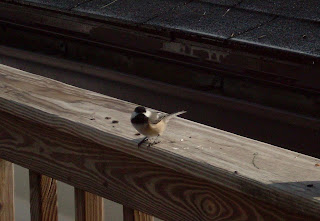
Not centered:

In the centered-subject shot, the diagonal lines are broken up and don't carry the eye through the picture. In the second shot, the bird is in the corner of the photo and the lines are much more visible.
Rhododendron in winter...
Centered:

Not Centered:

Centered:

Not centered:

In the centered-subject shot, the diagonal lines are broken up and don't carry the eye through the picture. In the second shot, the bird is in the corner of the photo and the lines are much more visible.
Rhododendron in winter...
Centered:

Not Centered:

Thursday, February 25, 2010
Week Five: Part Two
These photos are similar in that subject is the same, but their compositions are totally different. One was taken using the rule of thirds. You can see how the grass and fence frame the photo and my little boy is not directly centered in the shot. This photo was taken on an older camera in fall 2008 but shows the 1/3's rule well, I think.

The second photo I took of him straight on. All you see is a face! This photo doesn't tell a story like the first one does.

Hang tight for a few more examples coming soon! Let's hope this slushy, dreary weather lets up and allows for some nice photographic lighting tomorrow.

The second photo I took of him straight on. All you see is a face! This photo doesn't tell a story like the first one does.

Hang tight for a few more examples coming soon! Let's hope this slushy, dreary weather lets up and allows for some nice photographic lighting tomorrow.
Week Five, Part One: Composition and Aesthetics
If you're looking for photography tips geared toward the informed amateur, you have to check out The Pioneer Woman. The photography section on her blog is really educational but it doesn't get bogged down with too much information in one post. She has a great tutorial about cropping and the rule of thirds, called Cream of the Crop. A lot of rules to remember about composition are things I've been unknowingly following for a long time. Who knew?? Still, I am a long way from being a skilled photo-taker. :)
Being a skilled photographer is all about the feeling you bring to a shot. Aesthetics in photography is hard to define, just as it's hard to pinpoint in any work of art, but we've all experienced it. When the stars align in a photo, the perspective, tone, lines, etc. work together to make viewers feel something special.
Being a skilled photographer is all about the feeling you bring to a shot. Aesthetics in photography is hard to define, just as it's hard to pinpoint in any work of art, but we've all experienced it. When the stars align in a photo, the perspective, tone, lines, etc. work together to make viewers feel something special.
Sunday, February 21, 2010
More Monochrome
Emma was wearing a blue shirt today that really seemed to play on her blue eyes. I stood her next to the window in my bathroom with blue walls and took her picture. Gimp was used to up the contrast a bit and add a little more color to her eyes.


Friday, February 19, 2010
Week 4, Part Two
These three photos were taken of the same subject (my daughter, Emma) at 3 different times of the day. She was sitting on the sofa next to a window.
The first photo was taken at 10:00 AM (in Vermont, month of February). Camera settings: f 2.8, shutter speed 1/15, no flash and only natural light.

The second photo was taken at 3:30 PM (again in Vermont, month of February). Camera settings: f 2.8; shutter speed 1/10; overhead, incandescent lighting and no flash.

The third photo was taken on the same day at 8:23PM. Camera was set to automatic with auto flash. Incandescent, overhead light.

I'm not sure that I love any of these shots. My point and shoot camera can be quite frustrating when shooting indoors, and manually adjusting the settings only helps so much. It's cool to see the difference lighting makes on a photo, though. Which photo looks best to you?
The first photo was taken at 10:00 AM (in Vermont, month of February). Camera settings: f 2.8, shutter speed 1/15, no flash and only natural light.

The second photo was taken at 3:30 PM (again in Vermont, month of February). Camera settings: f 2.8; shutter speed 1/10; overhead, incandescent lighting and no flash.

The third photo was taken on the same day at 8:23PM. Camera was set to automatic with auto flash. Incandescent, overhead light.

I'm not sure that I love any of these shots. My point and shoot camera can be quite frustrating when shooting indoors, and manually adjusting the settings only helps so much. It's cool to see the difference lighting makes on a photo, though. Which photo looks best to you?
Wednesday, February 17, 2010
Week 4, Part One: Color Schemes
First up, a photo that represents a monochromatic color scheme. I'm happy I learned last week how to use the macro setting on my camera.

Next is a photo representing an analogous color scheme. I like the variety of reds and yellows with an orange thrown in there.


Next is a photo representing an analogous color scheme. I like the variety of reds and yellows with an orange thrown in there.

Thursday, February 11, 2010
Another Collage
I liked the idea of a macro collage, but I felt like a collage of fewer pictures would show the details better. So took some more shots and made another collage of the new ones I liked.

I played around with the color curves in Gimp and got this cool effect on this photo of a snow shovel. The rust really pops out with the high contrast.


I played around with the color curves in Gimp and got this cool effect on this photo of a snow shovel. The rust really pops out with the high contrast.

